
How to print with KatterPrint.
From your file to the printed page in five steps. Turn the pages to follow along.
Swipe, use the arrow keys, or pull a page corner to turn the page
 KatterPrintAndroid app
User guide
Print from
your phone.
Upload, pick your pages, scan the printer, pay and collect, in five steps.
Inside this guide
Contents
Print from your phone, step by step.
This guide walks you through a print from start to finish: upload your file, choose your pages, scan the printer, pay and collect.
Have these ready
Swipe or pull the corner to turn the page
Get started
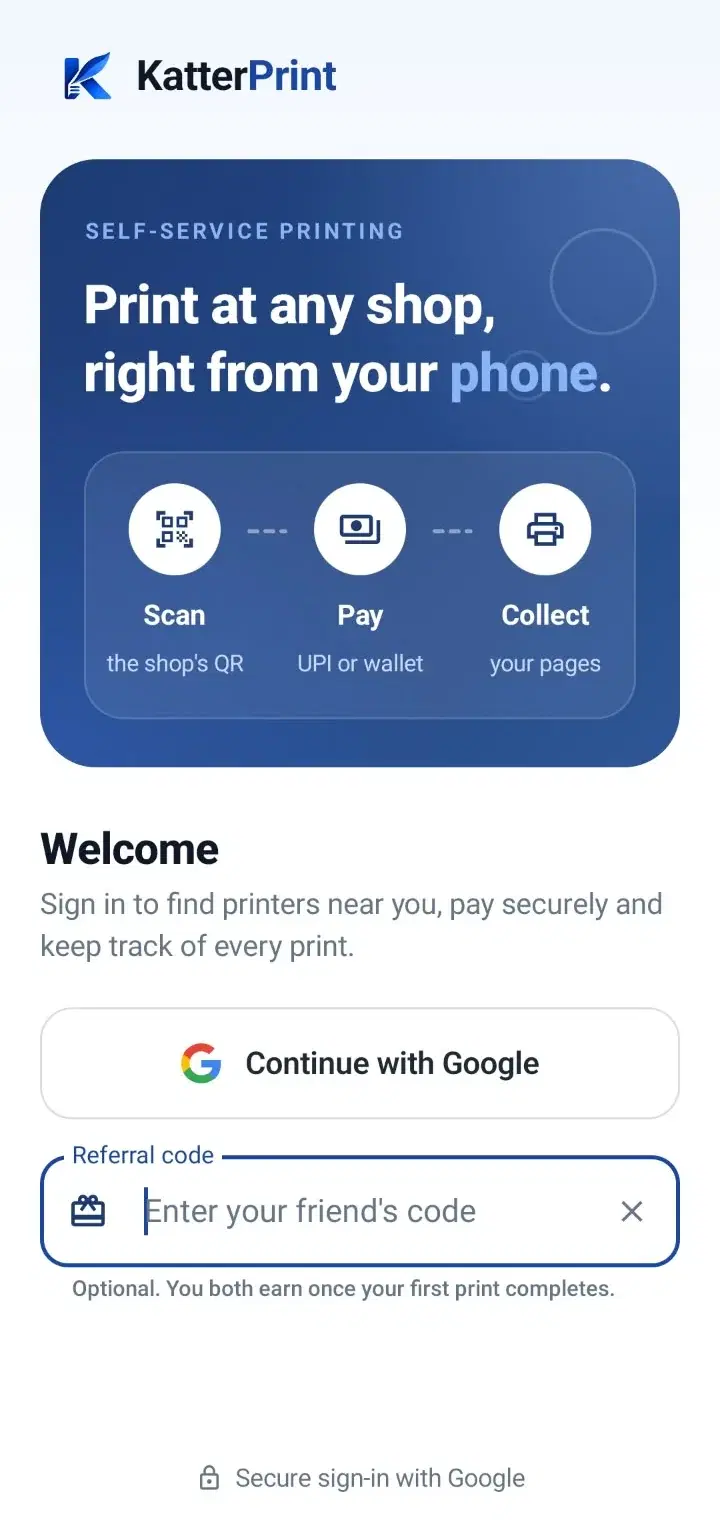
Get the app and sign in
KatterPrint runs on Android. Install it once and you can print at any KatterPrint printer.
- Download the KatterPrint app from katterprint.com/download.
- Open it and tap Continue with Google to sign in.
- Have a referral code from a friend? Tap Have a referral code? before you continue.
Tip: One account works at every KatterPrint printer, and your wallet and orders follow you.
Up nextUpload your file
Step 1Upload your file
Step 1
Upload your file
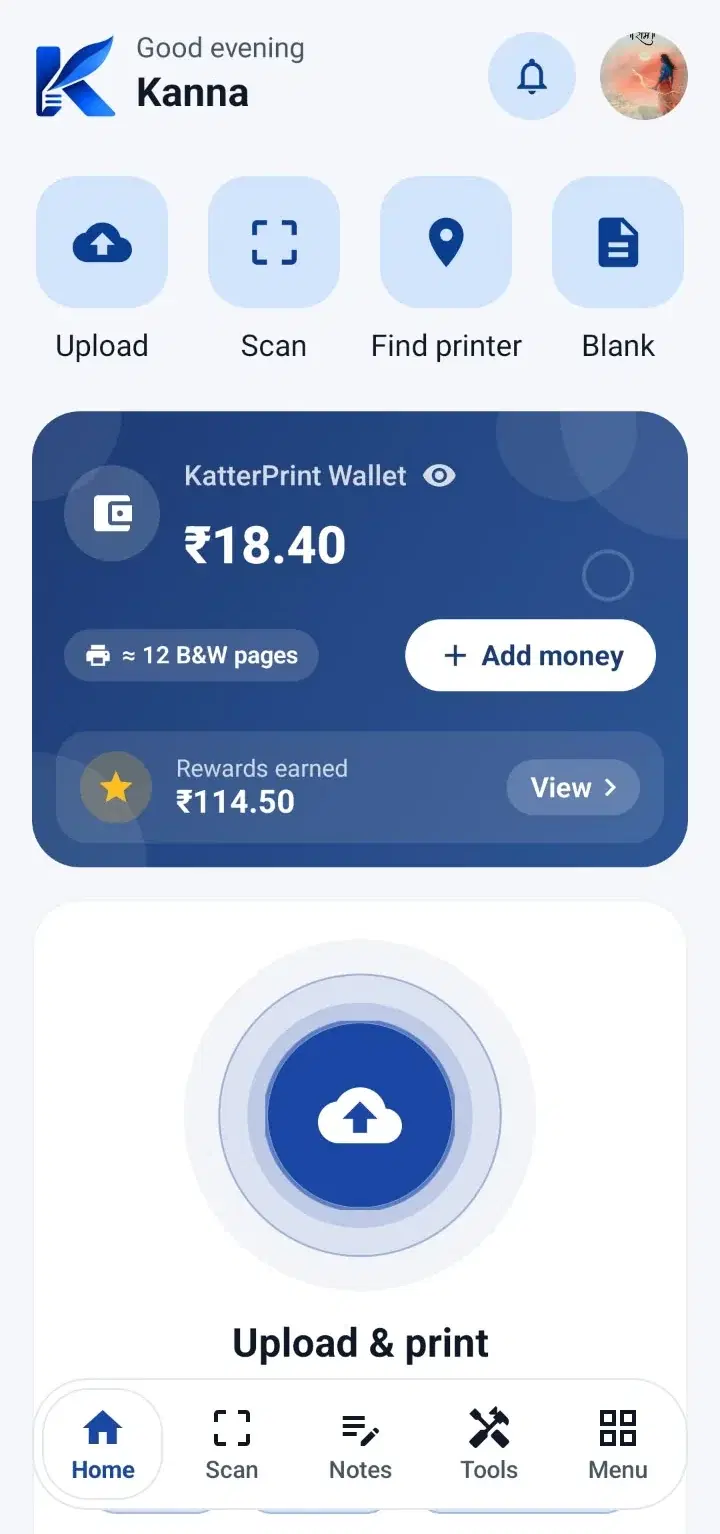
Start from the Home screen. Your file stays on your phone until you choose to print it.
What you can print
- PDF files
- Word documents
- Photos (JPG, PNG)
How to upload
- Tap Upload on the Home screen and pick a file from your phone.
- Or tap Scan to photograph a page with the KP Scanner.
- Files you used before are in Menu → Saved Files.
Up nextChoose pages and settings
Step 2Choose pages and settings
Step 2
Choose pages and settings
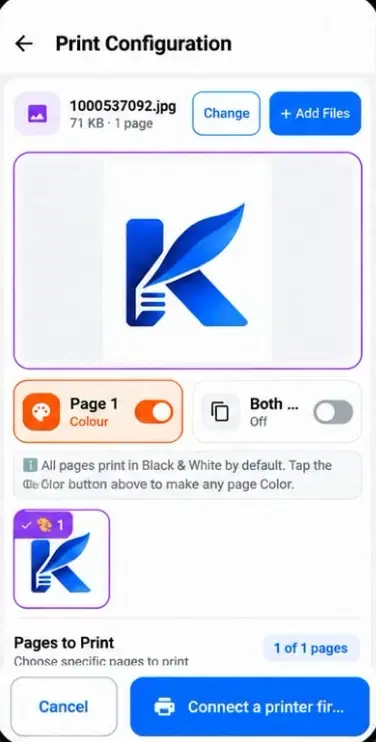
On Print Configuration, set up the print exactly the way you want it. The price updates as you go.
Pages
- All pages, or Custom to type a range, for example 1, 3, 5-7, 10.
- Swipe through the preview to check every page.
Settings
- Copies: how many of each page.
- Colour or Black & White, where the printer supports colour.
- Single-sided or Double-sided, where the printer supports it.
Tip: Paper is A4. The estimated cost is shown before you pay.
Up nextConnect to the printer
Scan printer QR
Point the camera at the code on the printer
Change printer
Step 3Connect to the printer
Step 3
Connect to the printer
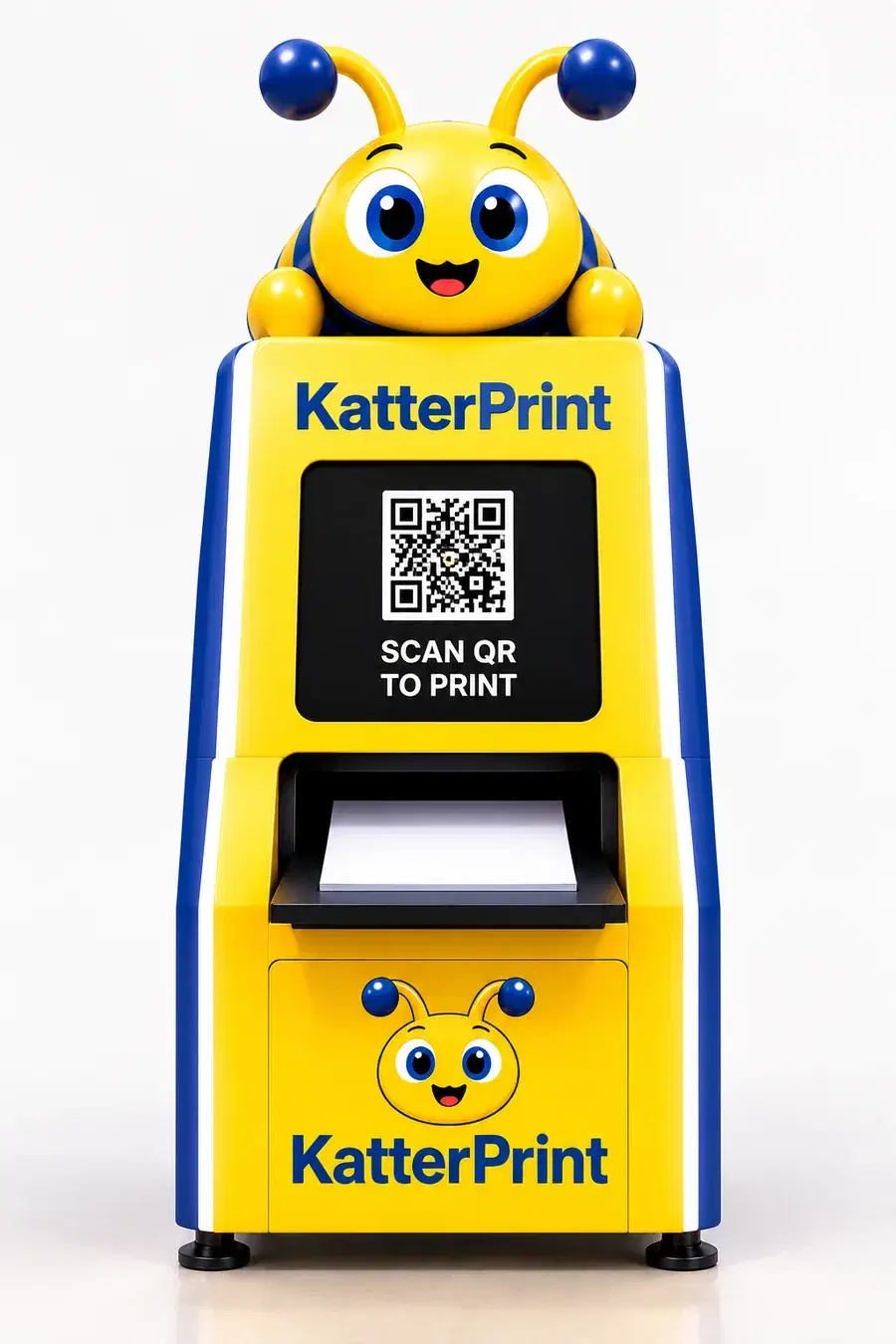
Every KatterPrint printer has a QR code on it. Scanning it tells the app which printer to use.
At the printer
- Tap Scan printer QR and point the camera at the code on the printer.
- The printer's name appears in your print summary. Tap Change printer to pick a different one.
Looking for a printer?
- Tap Find printer on the Home screen to see KatterPrint printers near you.
Up nextPay for the print
Step 4Pay for the print
Step 4
Pay for the print
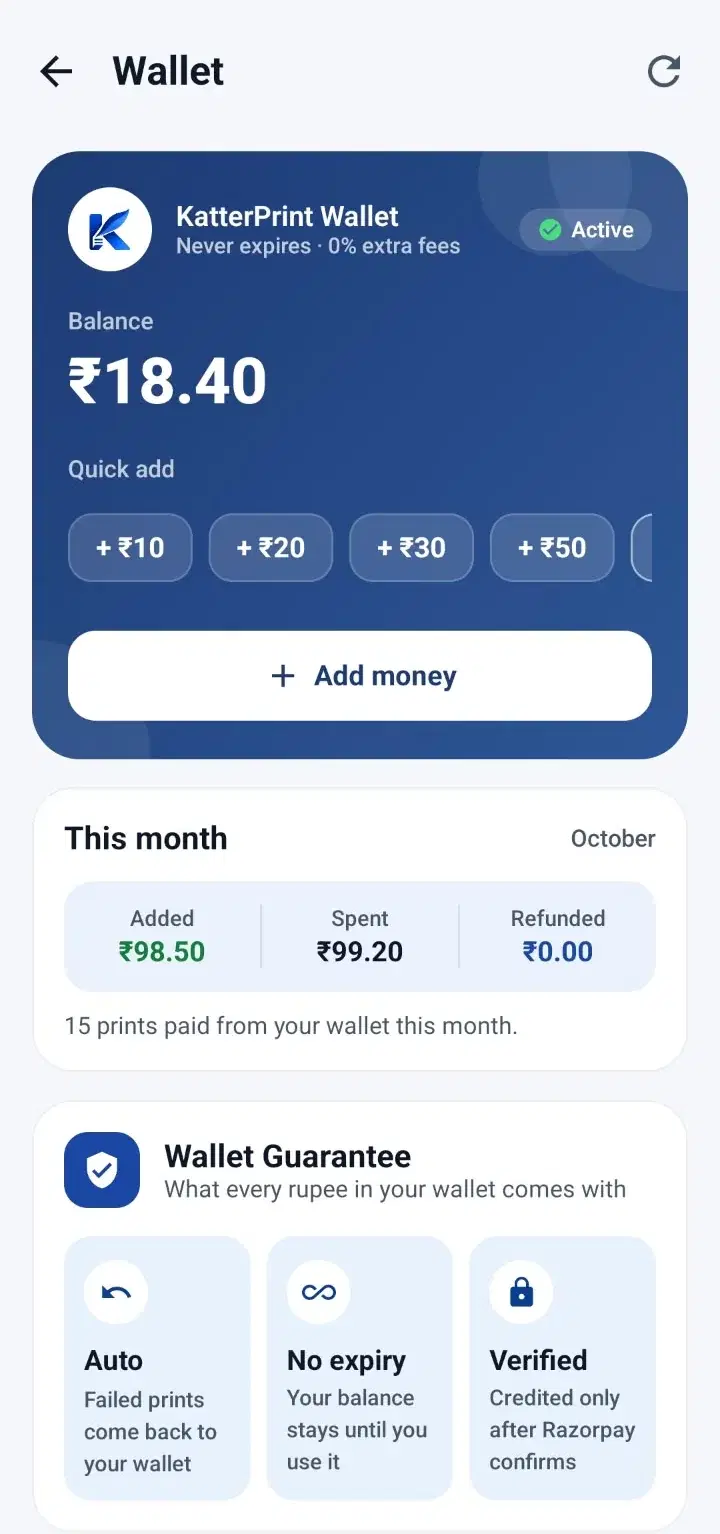
Pay from your KatterPrint Wallet or by UPI. No cash and no waiting for change.
Ways to pay
- KatterPrint Wallet: the print is paid from your balance in one tap.
- UPI: pay with any UPI app.
- Wallet short? Tap Top up to add money, or pay the print by UPI.
Coupons
- Have a coupon? Enter the code before you pay.
Tip: Wallet money never expires, and you can see every top-up and print in the Wallet screen.
Up nextPrint and collect
Printing
Sending to the printer
Keep the app open
Step 5Print and collect
Step 5
Print and collect
Once you have paid, your phone sends the job straight to the printer.
While it prints
- Keep Wi-Fi turned on. The app joins the printer's Wi-Fi for a moment, so your mobile internet may pause and then come back on its own.
- Watch the progress on screen and collect your pages from the tray.
If something goes wrong
- If a print fails, the money comes back to your wallet.
- Tap Report issue on the print screen to tell us what happened.
Tip: When it is done, rate your print. It helps the shop and other customers.
Up nextMore you can do
MoreMore you can do
More
More you can do
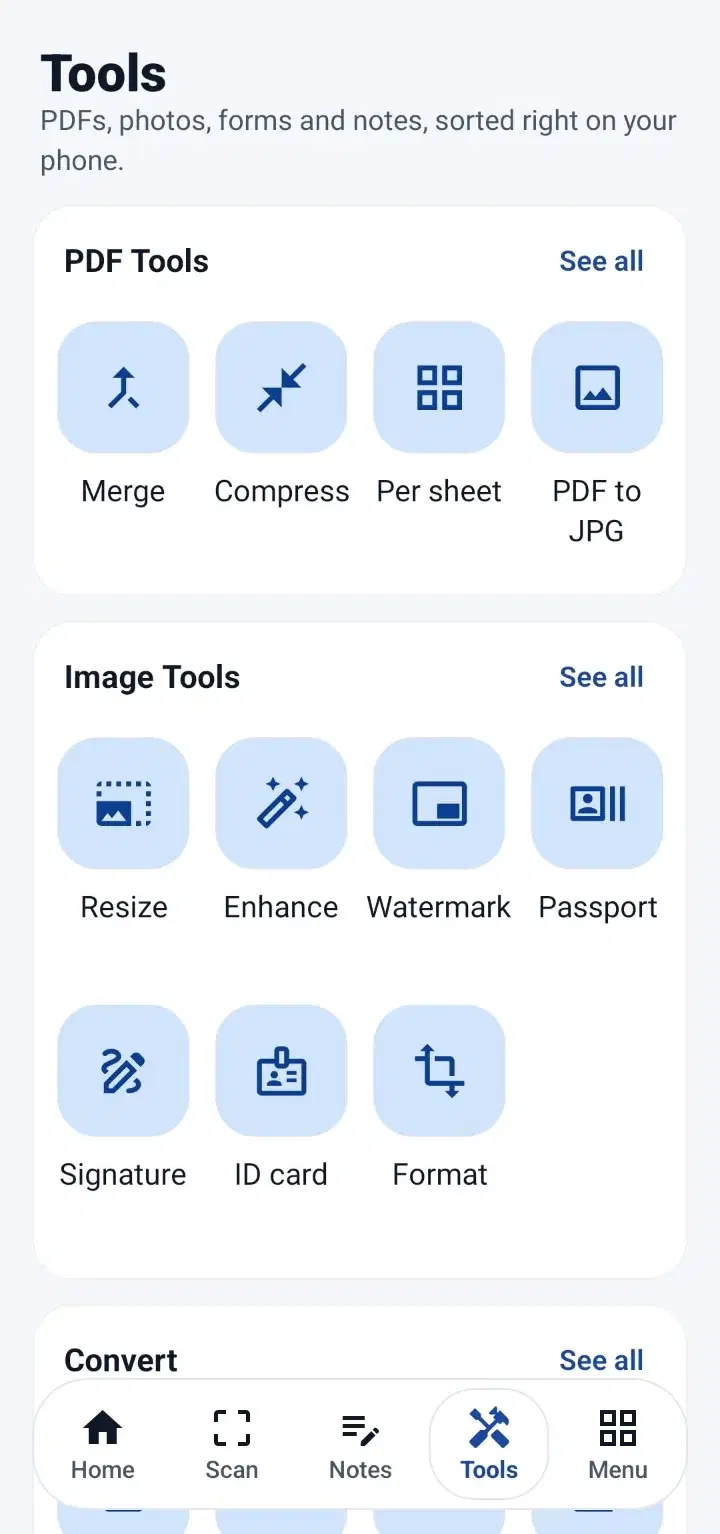
KatterPrint does more than print a file you already have.
- Blank Pages: print plain A4 sheets for exams, notes or rough work. No file needed.
- Tools: merge, compress and convert PDFs, and resize or enhance photos, right on your phone.
- ID card copy: front and back of a card on one page, at real size.
- Saved Files: your uploads and scans, ready to print again.
- Orders: every print and its receipt, in Menu → My Orders.
Up nextHelp and support
HelpHelp and support
Help
Help and support
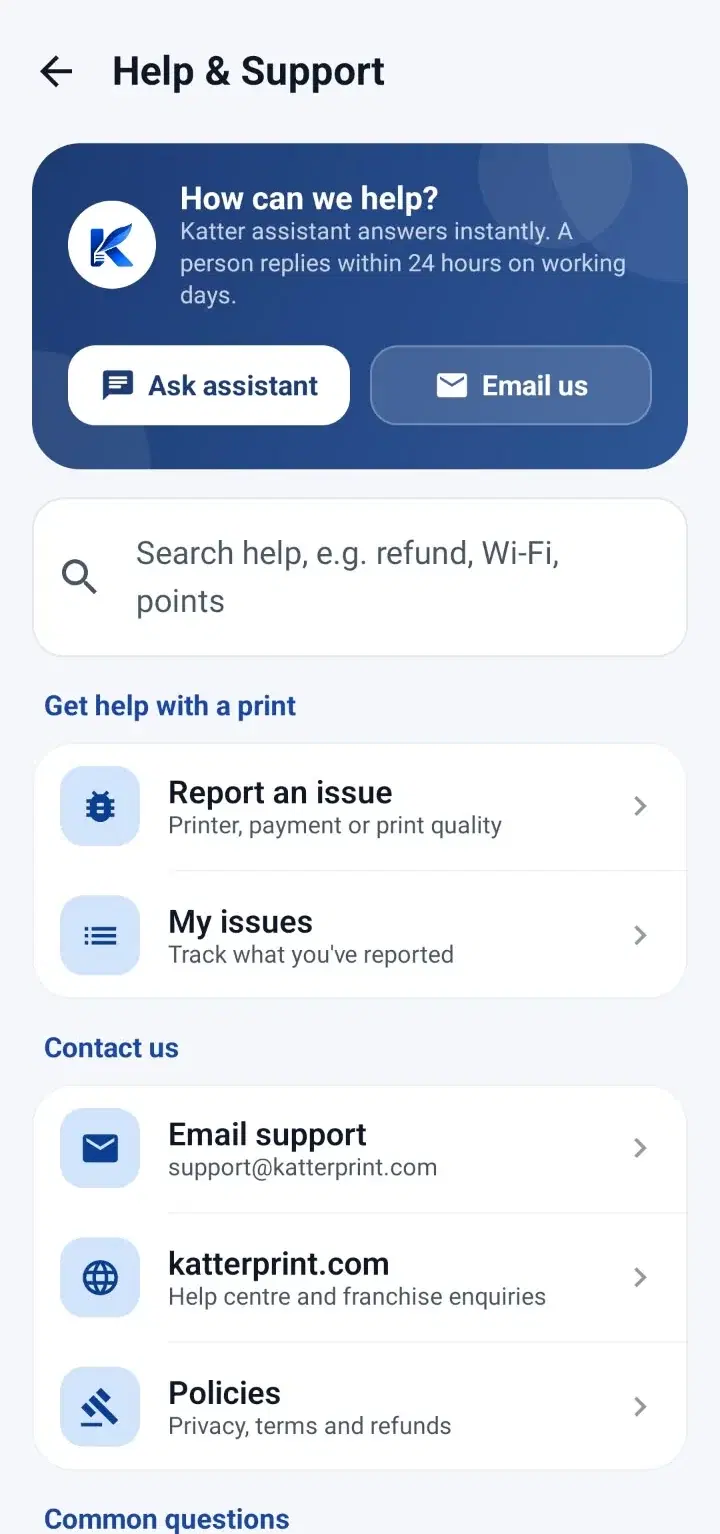
Stuck at any step? Help is in the app, any time.
In the app
- Open Menu → Help & Support.
- Ask assistant answers right away.
- Report an issue for a printer, payment or print-quality problem, and follow it in My issues.
- Write to support@katterprint.com. A person replies within 24 hours on working days.
That's the guideTurn the page to finish

You're all set
Thank you
for choosing
KatterPrint.
Happy printing!