Partner brochure

KatterPrint for partners

16 pages: the kiosks and their full specifications, the customer guide, the vendor console, partner questions and how to start.

Partner brochure · October 2026

Print,
without
the counter.

KatterPrint kiosks let customers scan, upload from their phone, pay and print, with no one at a counter. You host the kiosk and set the rates; the vendor console does the rest.
kiosk models
3
kiosk models
counter staff
0
counter staff
set the rates
You
set the rates
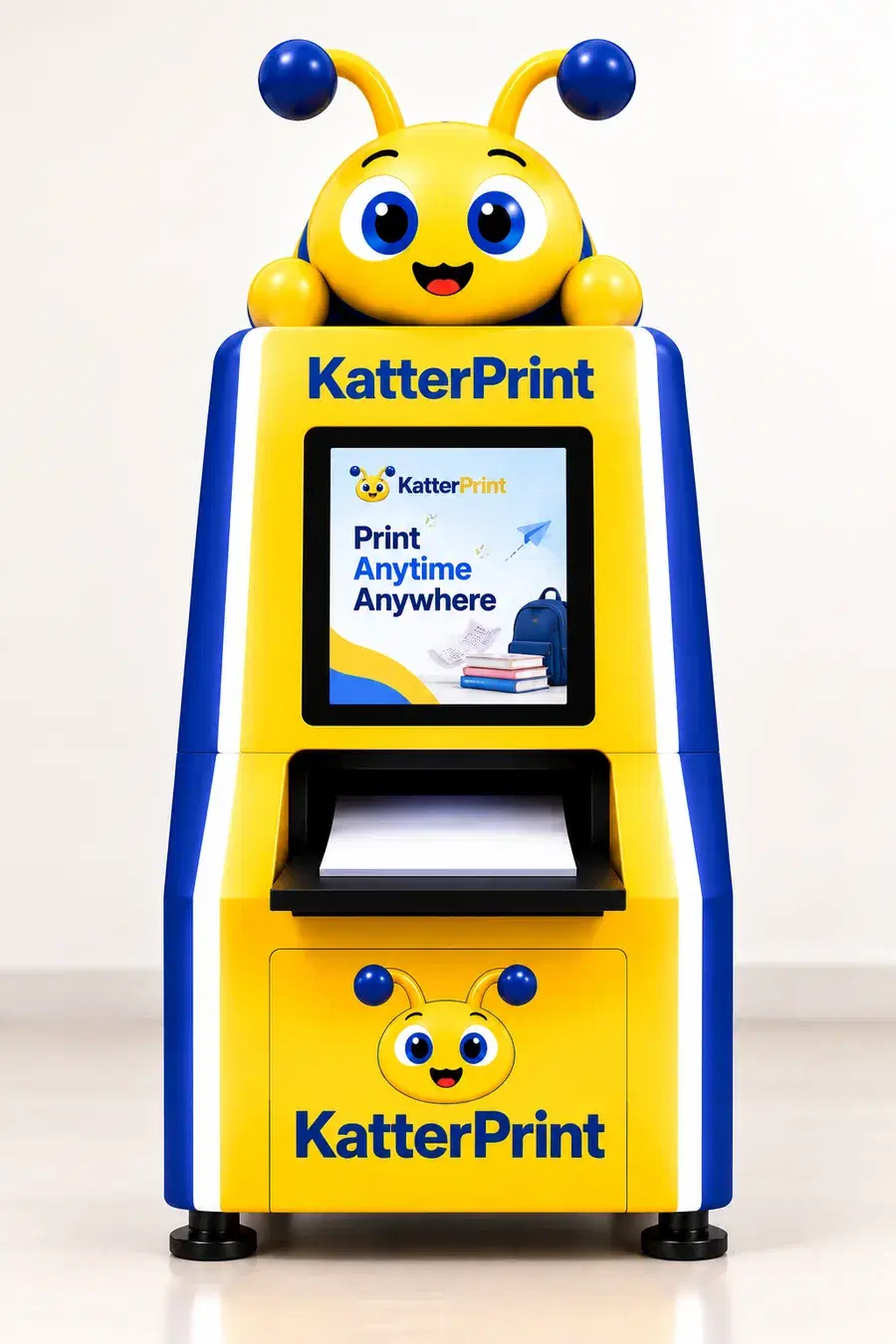
KatterPrint KP-Mini-250
KatterPrint KP-Classic-500
KatterPrint KP-JUMBO-1000

katterprint.com · support@katterprint.com

KatterPrint · Partner brochureCover · 01/16

Inside this brochure

Everything a partner needs to know.

The three KatterPrint kiosks with their full specifications, the complete customer guide with the app's own screens, the vendor console you run them from, and how to host one.

  1. 03PageHow it worksThe four steps of a print, and why it runs itself
  2. 04PageThe kiosk rangeMini, Classic and Jumbo at a glance
  3. 05PageKiosk specificationsOne page per model, every figure on the sheet
  4. 08PageSide by sideThe three models compared
  5. 09PageCustomer guideHow a customer prints, step by step, with the app's screens
  6. 13PageVendor consoleEvery kiosk, its orders and payouts, in one place
  7. 14PageHosting a kioskWho it suits and what comes in the box
  8. 15PagePartner questionsWhat partners ask before they sign
  9. 16PageGet startedFour steps to your own kiosk
KatterPrint · Partner brochureContents · 02/16

How it works

A print counter that runs itself.

The customer does every step on their own phone, and the phone drives the printer directly. You keep paper in the tray and watch everything from the vendor console.

  1. 01

    Scan the kiosk

    The customer scans the QR on the kiosk with the KatterPrint app.

  2. 02

    Upload and pick pages

    Pages, copies, colour and sides, with the price shown before paying.

  3. 03

    Pay by UPI or wallet

    In the app. No cash, no change, nobody at a counter.

  4. 04

    Collect the print

    The phone sends the job to the printer. Pages land in the tray.

Runs itself

Scan, upload, pay, collect. Nobody stands at a counter for every job.

Pricing you control

You set the per-page rates for your kiosks and change them from the console.

Live vendor console

Orders, toner, paper and payouts in one dashboard, on a phone or a laptop.

Private documents

You never open the customer's file. They delete it when they are done.

KatterPrint · Partner brochureHow it works · 03/16

Three models

Pick by venue and footfall.

KatterPrint KP-Mini-250

Mini

KP-Mini-250

Best for a shop corner, a library or a cafe.

Connectivity
Wi-Fi
Height
180 cm
W × D
75 × 85 cm
Paper
250 pages

Full specification on page 05

KatterPrint KP-Classic-500

Classic

KP-Classic-500

Best for colleges and busy campus buildings.

Ad screen
15.6″
Height
180 cm
Width
75 cm
Paper
500 pages or 1000 pages

Full specification on page 06

KatterPrint KP-JUMBO-1000

Jumbo

KP-JUMBO-1000

Best for railway stations, offices and large campuses.

Touchscreen
27″
Connectivity
Cloud + Wi-Fi
App needed
None
Paper
1000+ pages

Full specification on page 07

KatterPrint · Partner brochureThe kiosk range · 04/16
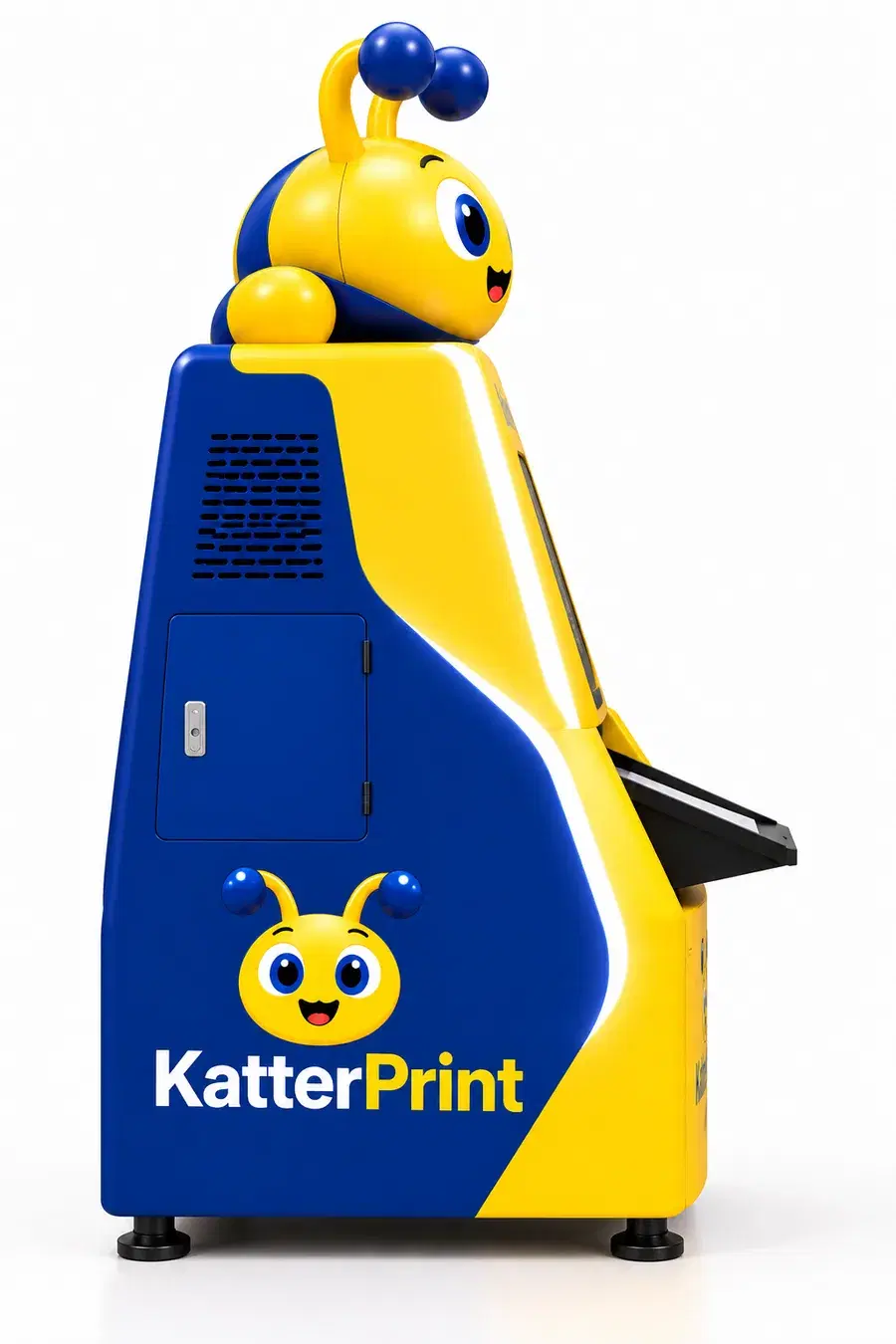
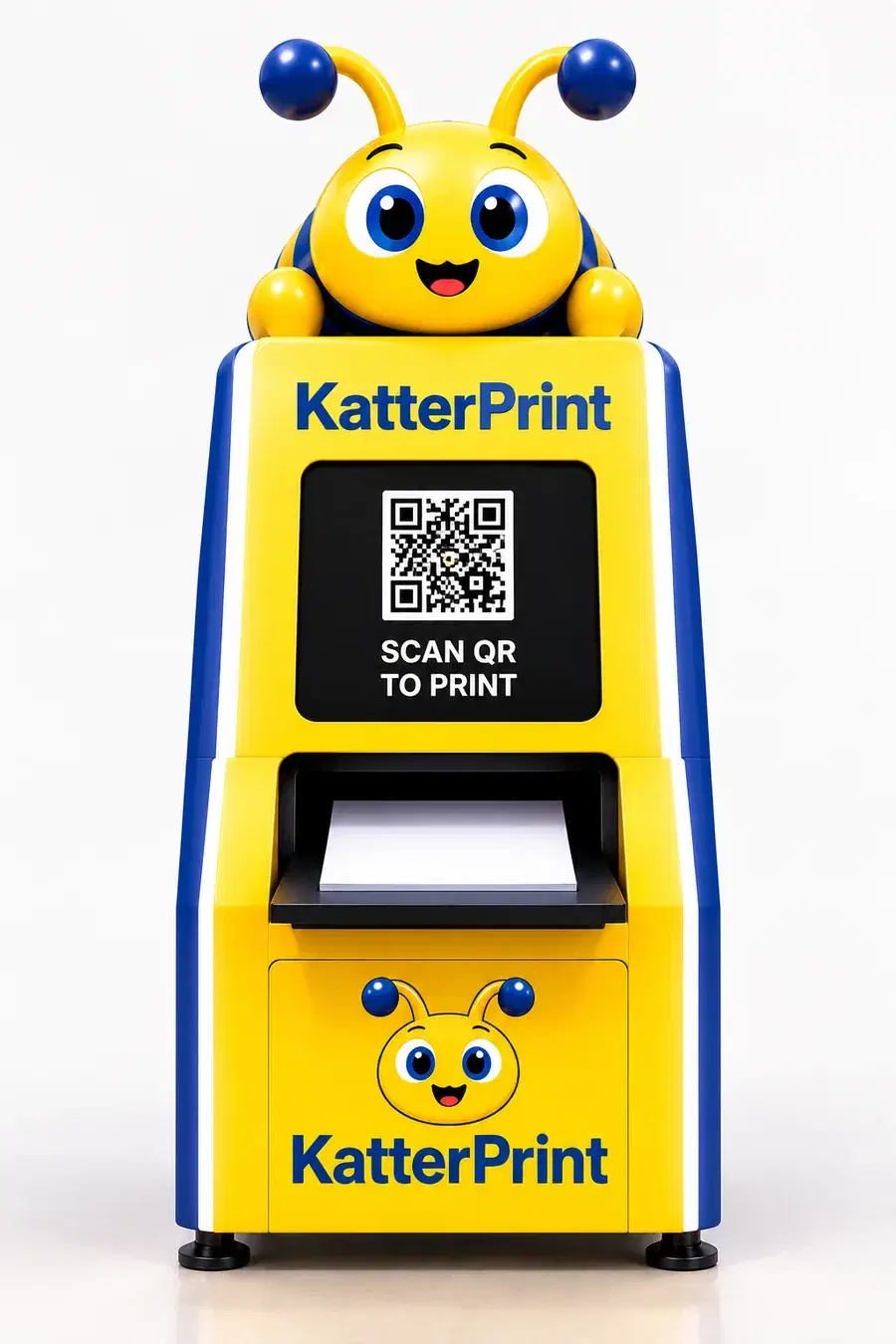
KatterPrint KP-Mini-250, front
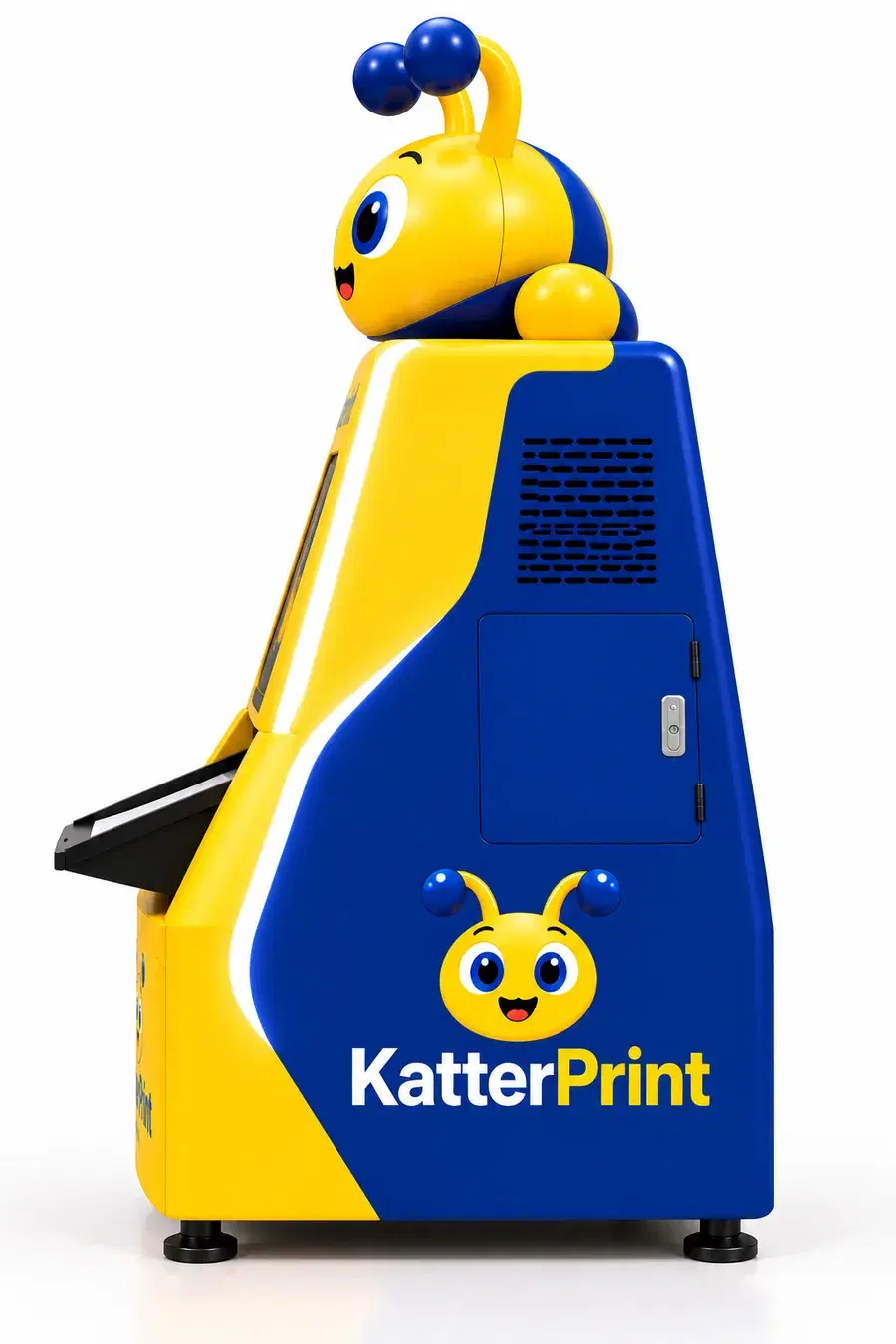
  • KatterPrint KP-Mini-250, left

    Left

  • KatterPrint KP-Mini-250, right

    Right

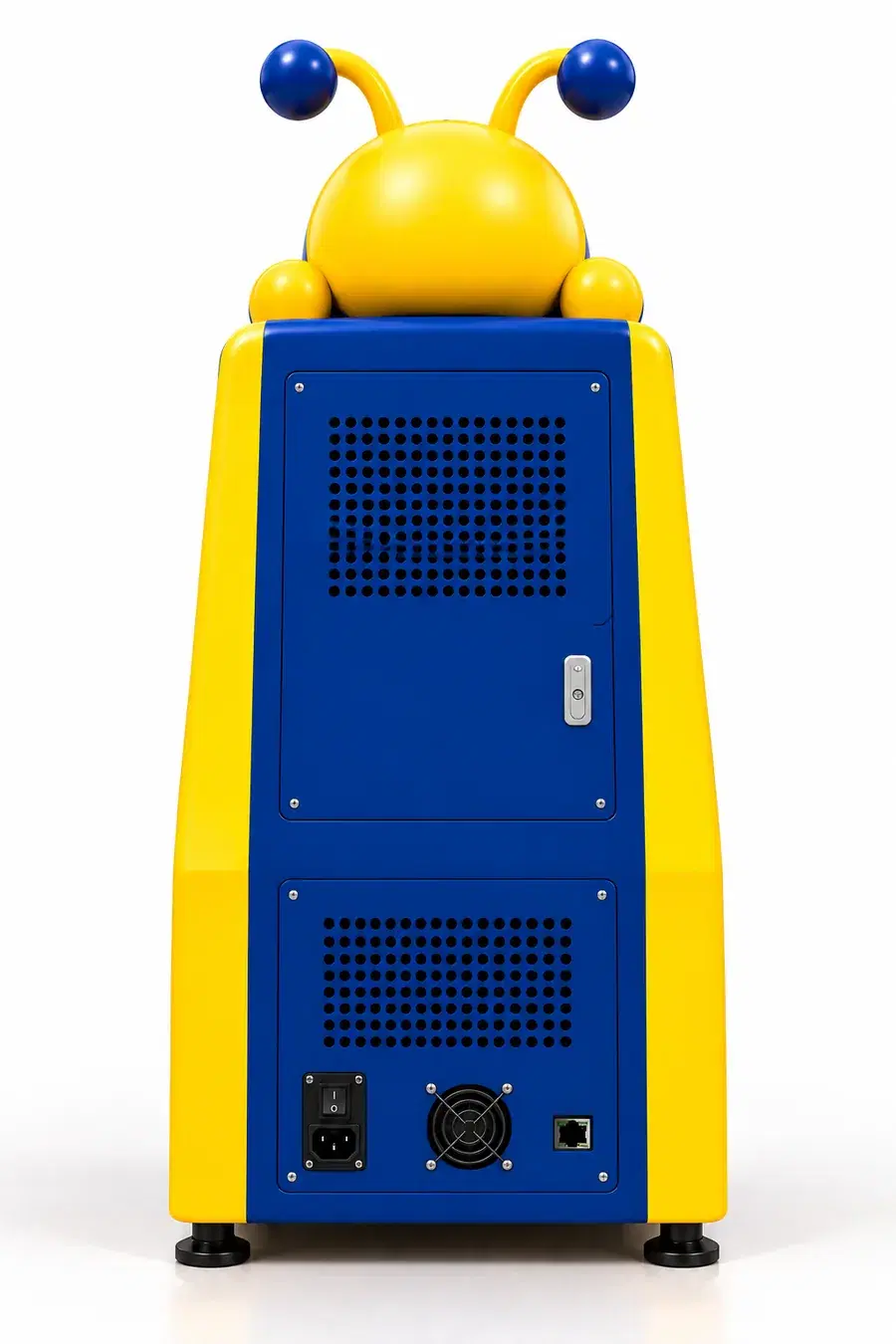
  • KatterPrint KP-Mini-250, back

    Back

Mini · Price on request

KP-Mini-250

The compact one, for a shop corner, a library or a cafe. Customers scan the QR on the front panel and print straight from their phone.

Connectivity Wi-FiHeight 180 cmW × D 75 × 85 cm250 pages

Printing

How customers print
Scan the QR on the front panel, then upload and pay in the KatterPrint app
Paper capacity
250 pages
Print output
A4 printout collection tray

Cabinet

Dimensions
H 180 cm · W 75 cm · D 85 cm
Ventilation
Side grilles and a rear grille
Base
Four levelling feet, stable and adjustable
Design
Caterpillar mascot, yellow and royal blue

Connectivity and power

Connectivity
Wi-Fi
Power
External power inlet and switch at the back

Service

Service access
Rear service door, with lock
Management
Orders, paper and payouts in the vendor console

Key features

  • QR scanner panel — scan to start printing
  • 250-page A4 printout collection tray
  • Wi-Fi connectivity
  • Side and rear ventilation grilles
  • Rear service door with lock
  • Four levelling feet

Ideal for

A shop corner, a library or a cafe

ShopsLibrariesCafes
KatterPrint · Partner brochureSpecifications · Mini · 05/16
KatterPrint KP-Classic-500, front

Front view

Classic · Price on request

KP-Classic-500

For colleges and busy campus buildings. A 15.6" screen runs ads and offers while students upload and pay in the KatterPrint app, then scan the kiosk to print.

Ad screen 15.6″Height 180 cmWidth 75 cm500 pages1000 pages

Printing

How customers print
Upload and pay in the KatterPrint mobile or web app, then scan the QR on the kiosk
Paper capacity
500 pages or 1000 pages
Print output
A4 printout collection tray

Cabinet

Dimensions
H 180 cm · W 75 cm · D 85 cm
Structure
Sturdy metal cabinet
Cooling
Side ventilation grilles
Base
Four levelling feet, for indoor installation
Security
Rear service door, with lock

Display

Screen
15.6 inch advertisement screen, non-touch
Shows
Ads, offers and announcements

Connectivity and power

Connectivity
Wi-Fi or Ethernet, as per the site
Power supply
AC 220–240 V, 50/60 Hz, external inlet and switch

Key features

  • Advertisement display screen (non-touch)
  • Upload and pay in the KatterPrint mobile or web app
  • Wi-Fi / Ethernet connectivity
  • Sturdy metal cabinet with a lockable service door
  • AC 220–240 V, 50/60 Hz, external power switch
  • Levelling feet, for indoor installation

Ideal for

Colleges and busy campus buildings

CollegesCampus buildings
KatterPrint · Partner brochureSpecifications · Classic · 06/16
KatterPrint KP-JUMBO-1000, front

Front view

Jumbo · Price on request

KP-JUMBO-1000

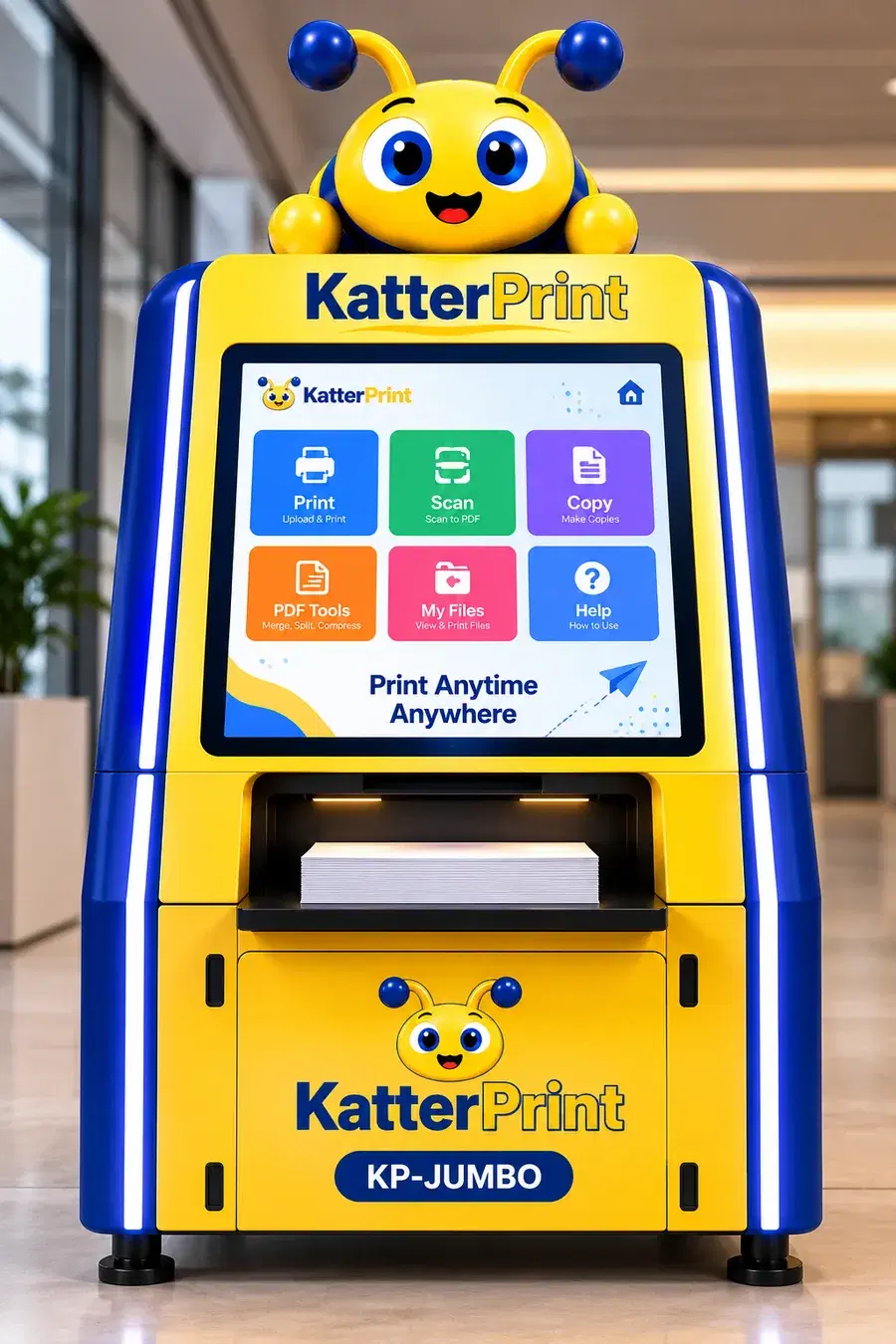
The full self-service station. A 27" touchscreen runs the KatterPrint software on the kiosk itself — print, scan, copy and PDF tools, no app required.

Touchscreen 27″Connectivity Cloud + Wi-FiApp needed None1000+ pages

Printing

How customers print
On the kiosk's touchscreen, no app needed
Print from
The cloud, a USB drive or a scan
Print output
High-capacity A4 tray, built for 1000+ pages

Scan, copy and tools

Scan
Scan to PDF: email, USB or cloud
Copy
Physical copies
PDF tools
Merge, split, compress, rotate

Display

Screen
27 inch touchscreen
On screen
Print, Scan, Copy, PDF Tools, My Files, Help

Connectivity and cabinet

Connectivity
Cloud and Wi-Fi
Structure
Sturdy metal cabinet

Key features

  • Print from cloud, USB or a scan
  • Scan to PDF — email, USB or cloud
  • Cloud and Wi-Fi connectivity
  • Make physical copies
  • PDF tools: merge, split, compress, rotate
  • High-capacity A4 tray for bulk printing

Ideal for

Railway stations, offices and large campuses

Colleges and universitiesSchoolsOfficesLibrariesCommercial spacesRailway stations
KatterPrint · Partner brochureSpecifications · Jumbo · 07/16

Compare

The three kiosks, spec by spec.

MiniKP-Mini-250ClassicKP-Classic-500JumboKP-JUMBO-1000
How customers printScan the QR, upload and pay in the appUpload and pay in the app, scan the QROn the kiosk's touchscreen, no app
ScreenNone (QR panel)15.6 inch ad screen, non-touch27 inch touchscreen
Paper capacity250 pages500 or 1000 pages1000+ pages
Print outputA4 collection trayA4 collection trayHigh-capacity A4 tray
On-kiosk featuresPrintPrint, ad displayPrint, scan, copy, PDF tools, My Files
Dimensions (H × W × D)180 × 75 × 85 cm180 × 75 × 85 cmOn request
ConnectivityWi-FiWi-Fi or EthernetCloud and Wi-Fi
PowerExternal inlet and switchAC 220–240 V, 50/60 HzOn request
CoolingSide and rear grillesSide grillesOn request
Service accessRear door with lockRear door with lockOn request
CabinetOn requestSturdy metalSturdy metal
BaseFour levelling feetLevelling feet, indoorOn request
Ideal forShops, libraries, cafesColleges, campus buildingsCampuses, offices, stations
KatterPrint · Partner brochureSide by side · 08/16

Customer guide · Part 1 of 4

Install, sign in, upload.

  • No pen drive, no WhatsApp to the shop
  • No cash and no waiting for change
  • The shop never opens the file
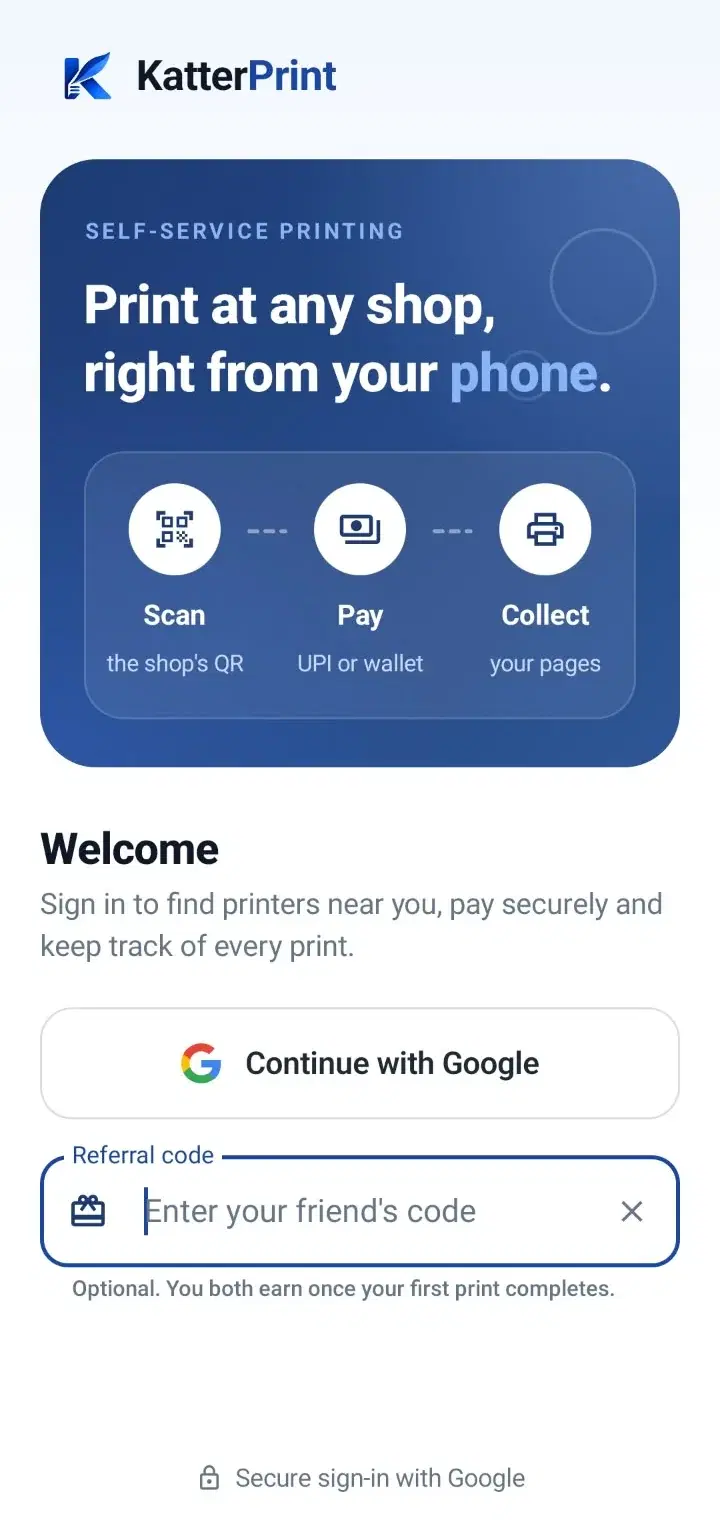
KatterPrint app: Get the app and sign in

Get started

Get the app and sign in

KatterPrint runs on Android. Install it once and you can print at any KatterPrint printer.

  • Download the KatterPrint app from katterprint.com/download.
  • Open it and tap Continue with Google to sign in.
  • Have a referral code from a friend? Tap Have a referral code? before you continue.

One account works at every KatterPrint printer, and your wallet and orders follow you.
KatterPrint app: Upload your file

Step 1

Upload your file

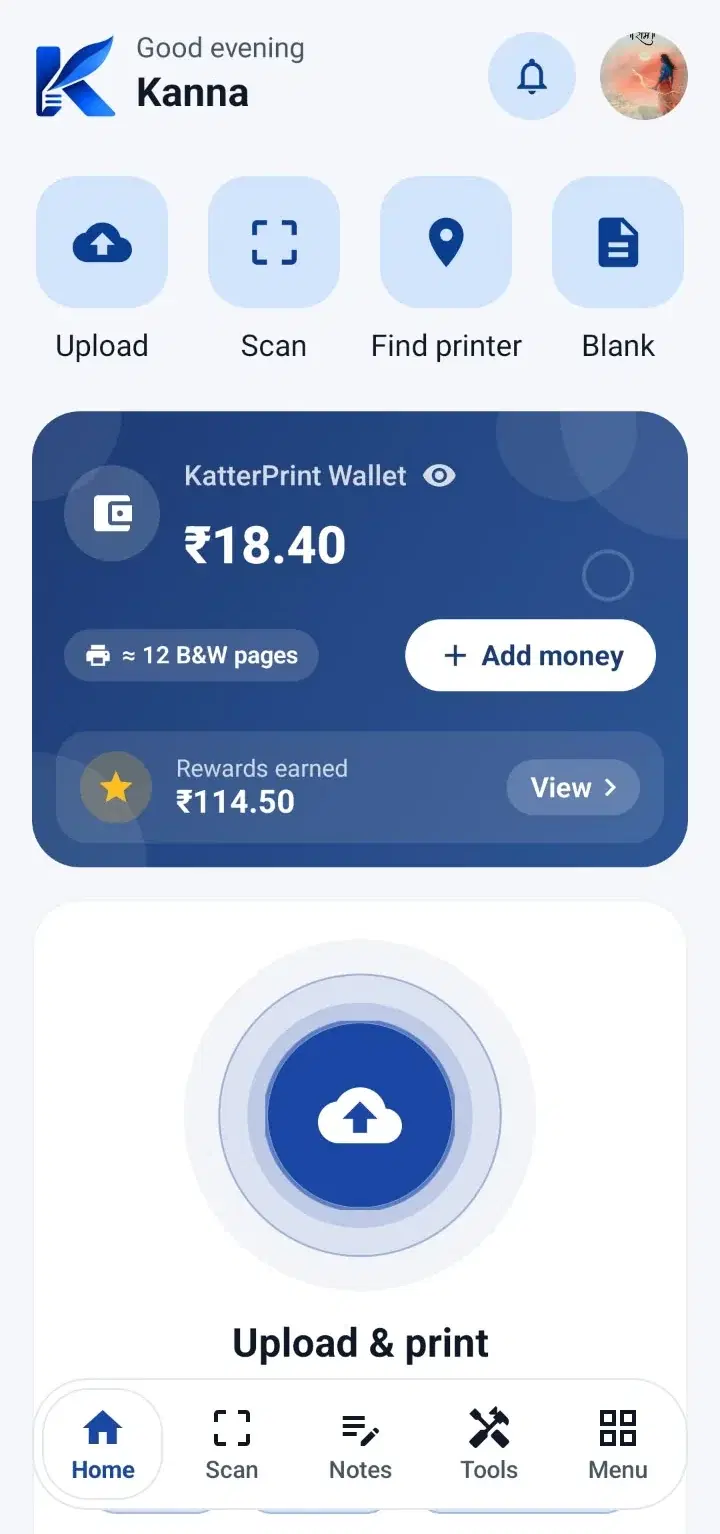
Start from the Home screen. Your file stays on your phone until you choose to print it.

What you can print

  • PDF files
  • Word documents
  • Photos (JPG, PNG)

How to upload

  • Tap Upload on the Home screen and pick a file from your phone.
  • Or tap Scan to photograph a page with the KP Scanner.
  • Files you used before are in Menu → Saved Files.
KatterPrint · Partner brochureGuide · Start · 09/16

Customer guide · Part 2 of 4

Pick the pages, find the printer.

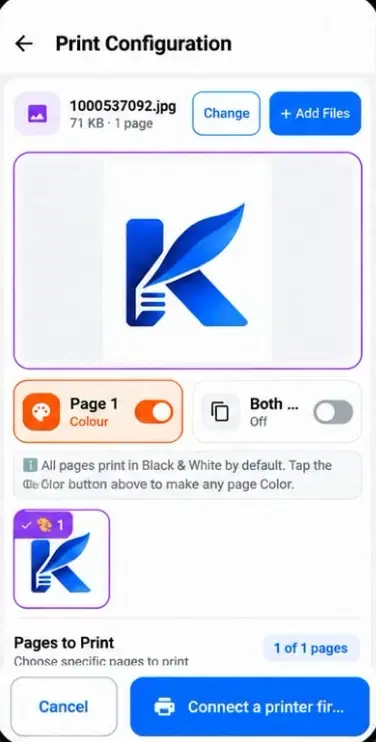
KatterPrint app: Choose pages and settings

Step 2

Choose pages and settings

On Print Configuration, set up the print exactly the way you want it. The price updates as you go.

Pages

  • All pages, or Custom to type a range, for example 1, 3, 5-7, 10.
  • Swipe through the preview to check every page.

Settings

  • Copies: how many of each page.
  • Colour or Black & White, where the printer supports colour.
  • Single-sided or Double-sided, where the printer supports it.

Paper is A4. The estimated cost is shown before you pay.

Scan printer QR

Point the camera at the code on the printer

KP-Classic-500KatterPrint kioskReady

Change printer

Step 3

Connect to the printer

Every KatterPrint printer has a QR code on it. Scanning it tells the app which printer to use.

At the printer

  • Tap Scan printer QR and point the camera at the code on the printer.
  • The printer's name appears in your print summary. Tap Change printer to pick a different one.

Looking for a printer?

  • Tap Find printer on the Home screen to see KatterPrint printers near you.
KatterPrint · Partner brochureGuide · Set up · 10/16

Customer guide · Part 3 of 4

Pay, then collect the paper.

KatterPrint app: Pay for the print

Step 4

Pay for the print

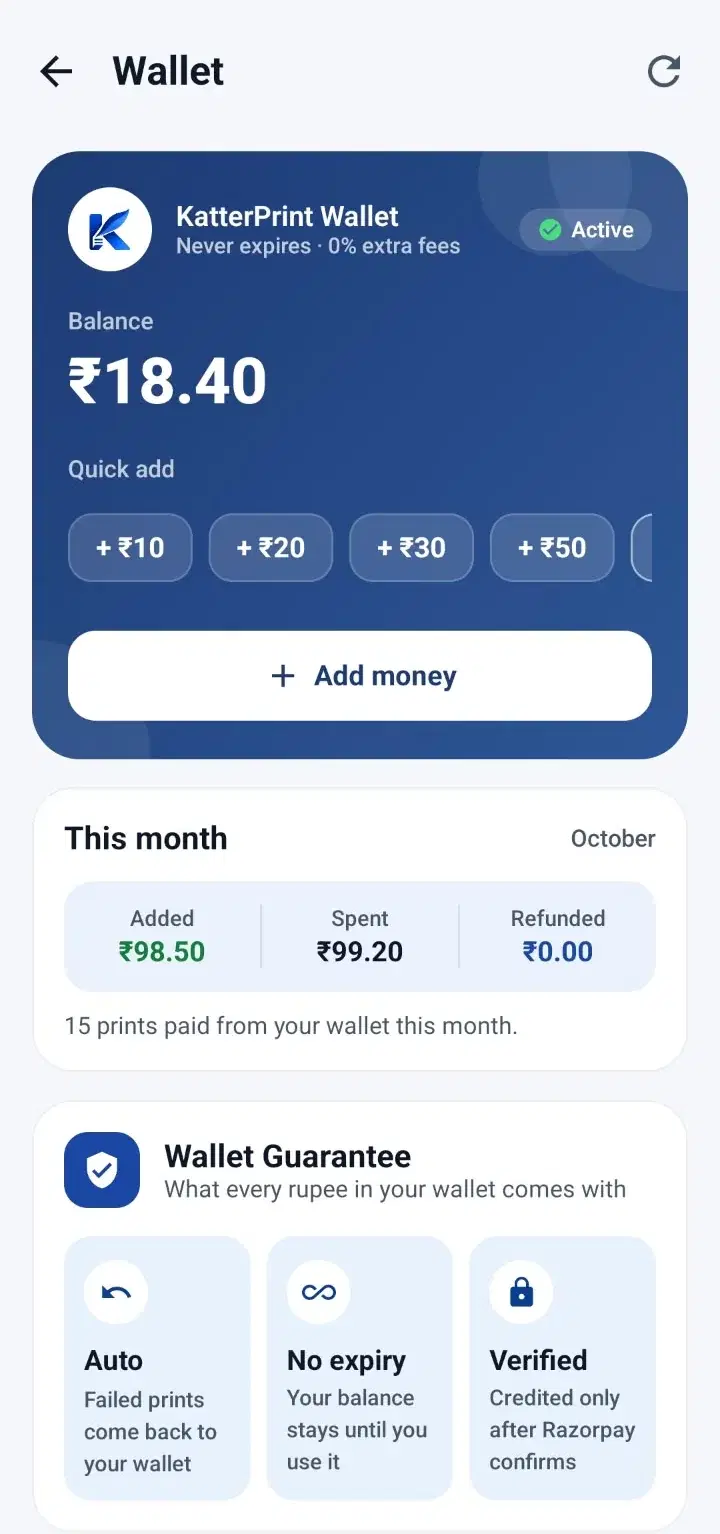
Pay from your KatterPrint Wallet or by UPI. No cash and no waiting for change.

Ways to pay

  • KatterPrint Wallet: the print is paid from your balance in one tap.
  • UPI: pay with any UPI app.
  • Wallet short? Tap Top up to add money, or pay the print by UPI.

Coupons

  • Have a coupon? Enter the code before you pay.

Wallet money never expires, and you can see every top-up and print in the Wallet screen.

Printing

Sending to the printer

Keep the app open

On the printer's Wi-Fi for a moment
Collect your pages from the tray

Step 5

Print and collect

Once you have paid, your phone sends the job straight to the printer.

While it prints

  • Keep Wi-Fi turned on. The app joins the printer's Wi-Fi for a moment, so your mobile internet may pause and then come back on its own.
  • Watch the progress on screen and collect your pages from the tray.

If something goes wrong

  • If a print fails, the money comes back to your wallet.
  • Tap Report issue on the print screen to tell us what happened.

When it is done, rate your print. It helps the shop and other customers.

KatterPrint · Partner brochureGuide · Print · 11/16

Customer guide · Part 4 of 4

Tools, and help when stuck.

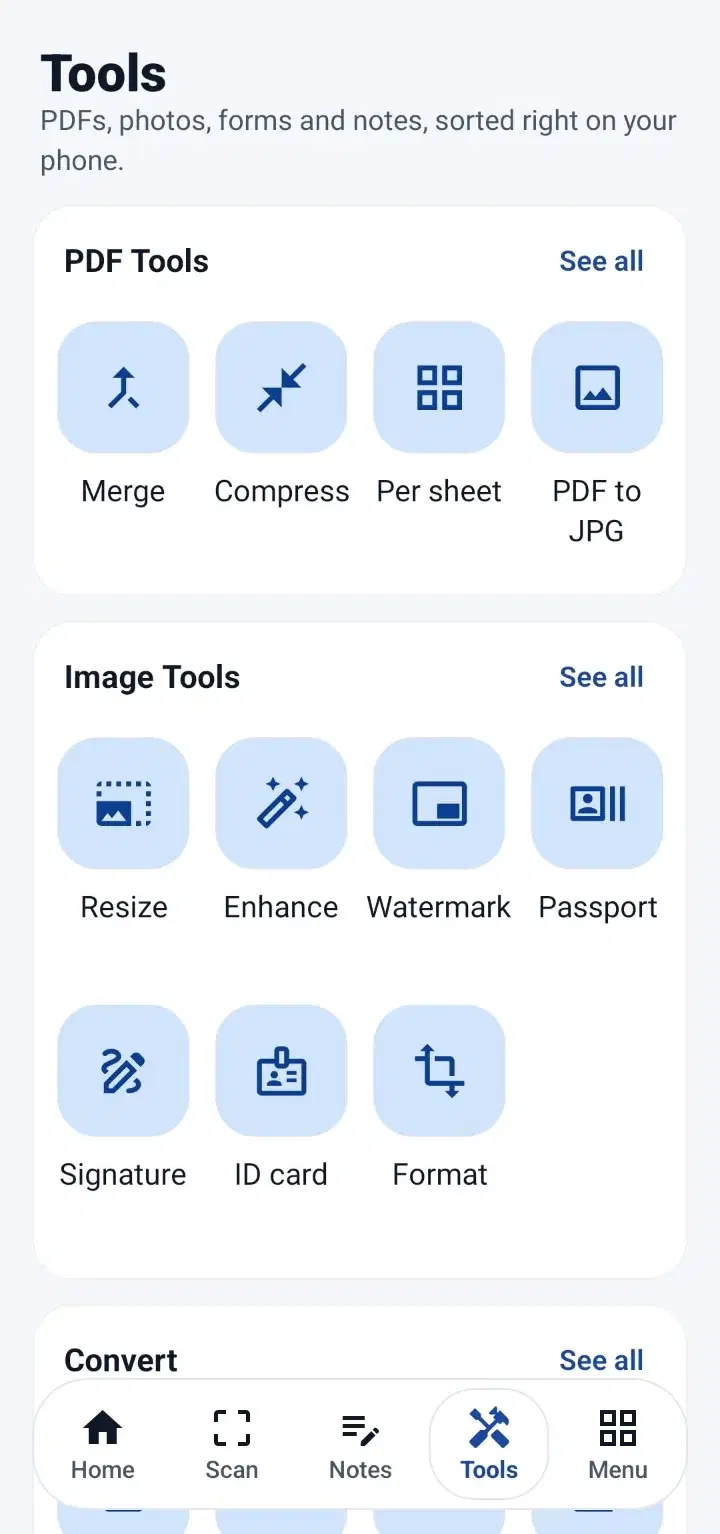
KatterPrint app: More you can do

More

More you can do

KatterPrint does more than print a file you already have.
  • Blank Pages: print plain A4 sheets for exams, notes or rough work. No file needed.
  • Tools: merge, compress and convert PDFs, and resize or enhance photos, right on your phone.
  • ID card copy: front and back of a card on one page, at real size.
  • Saved Files: your uploads and scans, ready to print again.
  • Orders: every print and its receipt, in Menu → My Orders.
KatterPrint app: Help and support

Help

Help and support

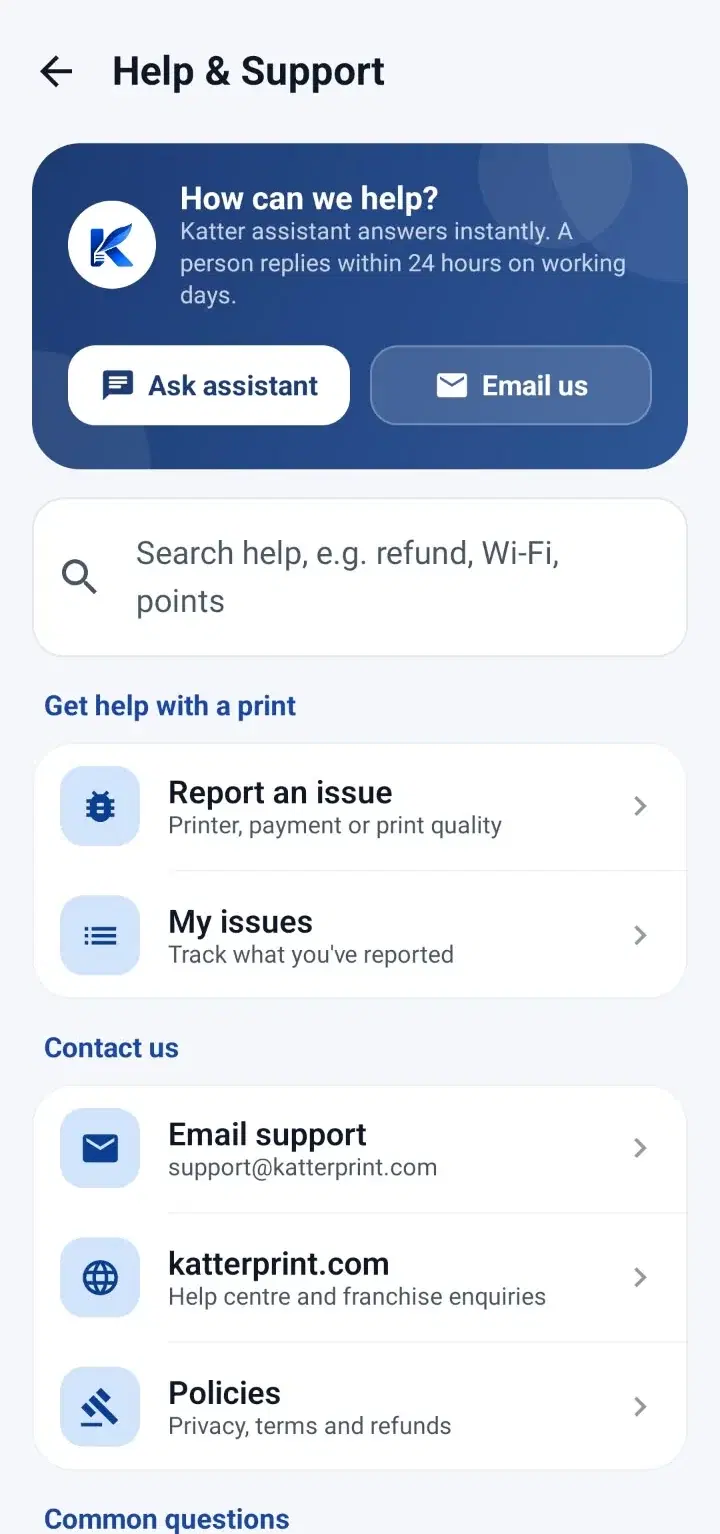
Stuck at any step? Help is in the app, any time.

In the app

  • Open Menu → Help & Support.
  • Ask assistant answers right away.
  • Report an issue for a printer, payment or print-quality problem, and follow it in My issues.

Email

  • Write to support@katterprint.com. A person replies within 24 hours on working days.

The full guide, page by page, is at katterprint.com/user-guide. Help Center: katterprint.com/help.

KatterPrint · Partner brochureGuide · More · 12/16

Software for partners

Every kiosk, one console.

The KatterPrint vendor console runs in the browser on a phone or a laptop. One login covers one kiosk or fifty: pricing, revenue and status in the same place.

In the browser, nothing to install
Phone or laptop
In the browser, nothing to install
One login for all of them
1 to 50+ kiosks
One login for all of them

If a job jams or fails

The customer is refunded to Points or gets a reprint token, and you get a notification. Nobody is left waiting at a counter.

Live dashboardToday's prints, revenue and kiosk status at a glance.
Orders and print queueEvery job, its pages and where it is right now.
PrintersEach kiosk's status, toner and paper.
Revenue and financeEarnings by day, week and month.
PayoutsUPI and Points payments settle to your linked bank account through Razorpay Route.
Shop settings and pricingYour rates, your hours, your shop details.
Customers and ratingsWho prints with you and what they think.
Issues and supportCustomer issues and a line to our team.
KatterPrint · Partner brochureVendor console · 13/16

Who hosts a KatterPrint kiosk

Built for places people already print.

Shop ownersStationery, xerox and bookstores adding a self-serve lane.
Campus partnersCanteens, hostels and student spots with daily assignment traffic.
Space ownersA spare corner in a tech park, library, transit hub or co-working floor.
First-time operatorsA small, semi-passive unit with platform support.
Coaching centresTest papers and notes printed without a staff queue.
Hostel and PG operatorsA print point residents can use at 2am.

The daily work: keep paper in the tray and swap toner when the console says it is low.

In the box

  • Pre-configured, branded kiosk
  • Wi-Fi print stack and IoT controller
  • Install support and training
  • One year on-site warranty, with remote diagnostics
  • Vendor console for the life of the unit
  • Account manager and a launch kit
KatterPrint · Partner brochureHosting a kiosk · 14/16

Questions

What partners ask before they sign.

The operational bits, answered. Anything else, write to support@katterprint.com and a person replies.

  1. 01

    How does the kiosk work for a customer?

    They scan the QR on the unit, upload from the phone, pick pages, pay with UPI or Points, and collect the prints. You do not handle the file.

  2. 02

    Do I need staff at the printer?

    No. Keep paper in the tray and swap toner when the dashboard says it is low. That is the daily work.

  3. 03

    How do payments reach me?

    UPI and Points payments settle to your linked account through Razorpay Route. The vendor console shows each job and payout.

  4. 04

    What hardware and warranty come with it?

    Industrial laser kiosk, IoT controller, Wi-Fi print stack, signage, and one year on-site warranty with remote diagnostics.

  5. 05

    What if a job jams or fails?

    Failed jobs refund to Points or a reprint token. You get a notification. The customer is not left waiting at a counter.

  6. 06

    Can I run more than one campus?

    Yes. One vendor console covers 1 to 50+ kiosks — pricing, revenue, and status in the same place.

KatterPrint · Partner brochurePartner questions · 15/16

How to start

Four steps to your own kiosk.

  1. Apply online

    City, proposed site and a short profile. The form takes a few minutes.

    01
  2. Site check

    We review footprint, power and footfall with you before any hardware ships.

    02
  3. Agreement and dispatch

    Sign digitally. The kiosk leaves branded, configured and ready to plug in.

    03
  4. Go live

    Power, network, vendor console. First prints typically the same week.

    04

Ready to host a kiosk?

Apply on our website and we will get back to you about your site, the right model and pricing.

KatterPrint · Partner brochureGet started · 16/16